ScriptKit - In-game interpreter plugin
A custom programming language & interpreter for programming games in Unreal Engine.
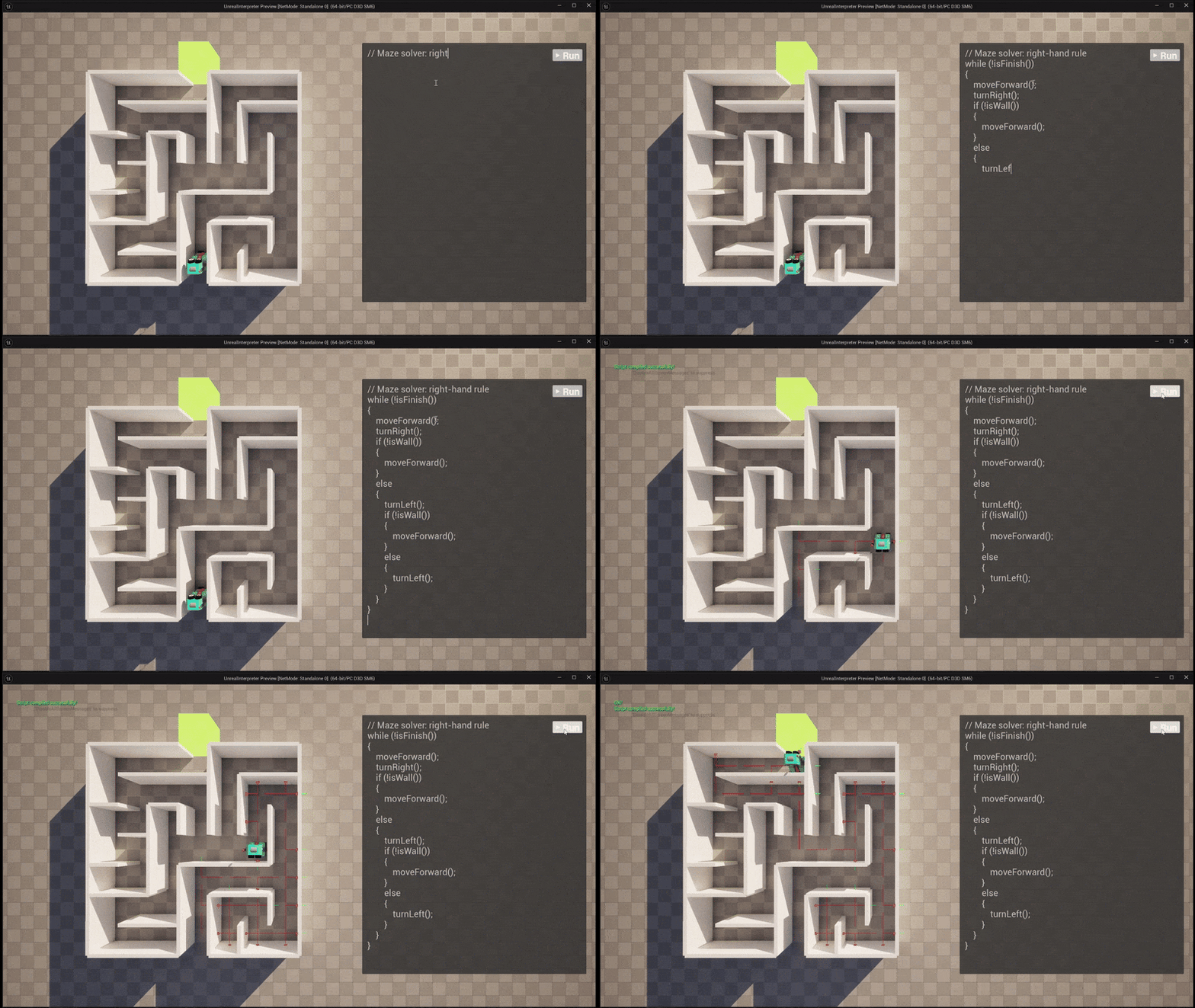
Overview
ScriptKit is a C++ Unreal Engine plugin that enables developers to create coding-based gameplay experiences through a custom Lox-inspired language.
Games like The Farmer was Replaced & RoboMind show that there is an increased interest in games where programming is the main mechanic, whether for educational purposes or just as gameplay. For this personal project I set out to create a plugin that would make it easy for developers to create programming gameplay in Unreal Engine.
My contributions
Custom programming language: Flex
No programming game is the same. You might want for loops and custom function calls, or none at all - you might want it to be in English, or you might want it to be in your native language.
To allow the developer full customization of the language, and to gain a better understanding of programming languages & compilers, I decided to make my own custom programming language from scratch. Following the Crafting Interpreters book by Robert Nystrom, I implemented a custom bytecode compiler & interpreter with type-erased variables (using std::variant & std::visit), operators, for & while loops and if-else statements as well as various standard library functions.
Video showcasing Flexlang running on the terminal with variables & statements
Unreal Engine integration
For ease of development I implemented my interpreter as a separate library, which I included as a submodule in my Unreal plugin repo.
To make the interpreter accessible & customizable to the end-user, I created a subsytem which holds the interpreter state. This exposes simple Blueprint nodes usable in Widget Blueprint UI.
For more custom behavior, I also added user-defined events that can e.g. trigger a restart of the level when the interpreter finishes executing. I also added logging interfaces that the user can attach any custom UI to.
Finally, I added UDeveloperSettings that expose things like execution speed and standard library function configurations for further control over the interpreter.
Logging interface connected to WBP UI
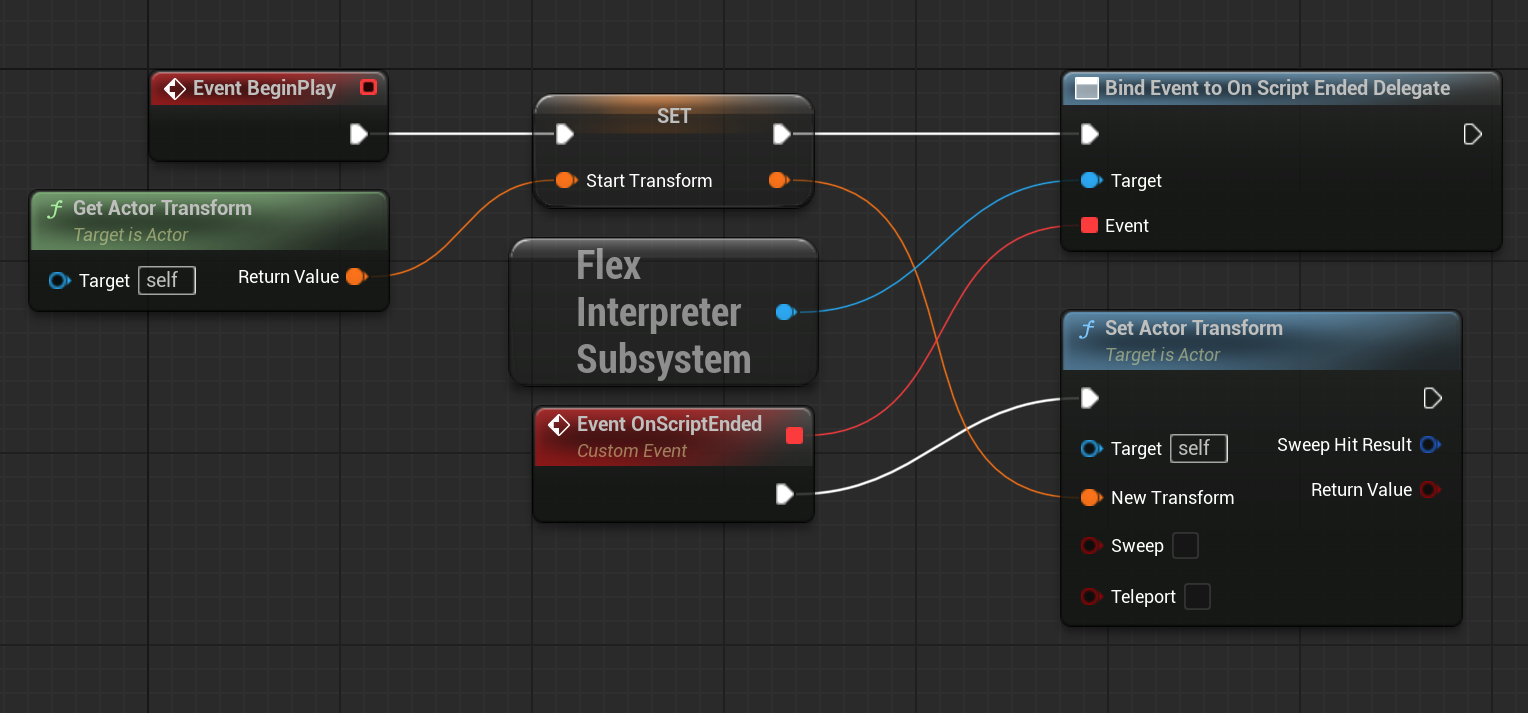 C++ delegates exposed to Blueprint - used to reset level
Technical implementation (read more)
To prevent the game from hanging during script execution (imagine being stuck in an infinite loop inside of the game), I split up the execution into single bytecode steps.
Using an accumulator, we can even have the user customize the execution speed (e.g. a temporary ‘fast-forward’ button).
1
2
3
4
5
6
7
8
9
10
11
12
13
14
15
16
17
18
19
20
21
22
23
24
25
26
27
28
void UFlexInterpreterSubsystem::Tick(float DeltaTime)
{
	if (!bIsInterpreterRunning || bIsInterpreterPaused) return;

	AccumulatedTime += DeltaTime;
	while (AccumulatedTime >= TimePerOpcode)
	{
		AccumulatedTime -= TimePerOpcode;

		// Execute a single instruction
		flex::InterpretResult interpretResult = vm.Step();
		if (interpretResult != flex::InterpretResult::INTERPRET_STEP_OK)
		{
			if (interpretResult != flex::InterpretResult::INTERPRET_OK)
			{
				// Runtime error
				GEngine->AddOnScreenDebugMessage(-1, 10.f, FColor::Red, TEXT("Error interpreting script!"));
				OnRuntimeErrorDelegate.Broadcast();
			}
			else {
				// Reached end of script
				GEngine->AddOnScreenDebugMessage(-1, 10.f, FColor::Green, TEXT("OK!"));
			}
			StopScript();
			break;
		}
	}
}
Blueprint function binding
The programmed behavior will also differ per-game. You might script a robot navigating through a maze, or a turret shooting at hordes of enemies.
To easily allow developers to add custom behavior in the language, I added support for extending the standard library with Blueprint function bindings.
All the developer has to do, is add the FunctionBindingComponent and write the name of the Blueprint function. Using UE reflection magic, the component then automatically retrieves the UFunction, analyzes the parameter types and registers it to the interpreter, including proper error logging for incorrect parameter types.
Video showcasing Blueprint function binding to interpreter
Technical implementation (read more)
To call Blueprint functions from our script, we first need to find the user-created function, and then execute it on the specified actor instance. If the function has arguments, we also need to make sure that these match our function signature.
Using Object->ProcessEvent(Function, Params); we can call the Blueprint function by reference. We pass in a buffer which will contain our input parameters as well as a possible return value.
To handle the memory around the Params buffer safely, I created a simple RAII struct:
1
2
3
4
5
6
7
8
9
10
11
12
13
14
15
16
17
18
19
20
21
22
23
24
25
26
27
28
29
30
31
struct FParamsBuffer
{
	void* Buffer;
	UFunction* Function;

	FParamsBuffer(UFunction* InFunction)
		: Function(InFunction)
	{
		Buffer = FMemory::Malloc(Function->ParmsSize);
		FMemory::Memzero(Buffer, Function->ParmsSize);

		// Initialize non-trivial properties
		for (TFieldIterator<FProperty> It(Function); It && It->HasAnyPropertyFlags(CPF_Parm); ++It)
		{
			It->InitializeValue_InContainer(Buffer);
		}
	}

	~FParamsBuffer()
	{
		if (!Buffer) return;
		for (TFieldIterator<FProperty> It(Function); It && It->HasAnyPropertyFlags(CPF_Parm); ++It)
		{
			It->DestroyValue_InContainer(Buffer);
		}
		FMemory::Free(Buffer);
		Buffer = nullptr;
	}

	void* Get() const { return Buffer; }
};
Using a TFieldIterator<FProperty> we can then analyze and write into the buffer, and finally call the function with the method I described above. If there is a return value we extract it from the buffer and return it back to the user in the script.
1
2
3
4
5
6
7
8
9
10
11
12
13
14
15
16
17
18
19
20
21
22
23
24
25
26
27
28
29
30
31
32
33
34
35
36
37
38
39
40
41
42
43
44
45
46
47
48
49
50
51
52
flex::NativeReturn CallFunctionOnObject(TWeakObjectPtr<UObject> Object, TWeakObjectPtr<UFunction> FunctionToCall, std::span<flex::Value> Args)
{
	if (!Object.IsValid() || !FunctionToCall.IsValid())
	{
		UE_LOG(LogTemp, Warning, TEXT("Object or function is invalid"));
		return flex::NativeReturnCode::NATIVE_RUNTIME_ERROR;
	}

	UFunction* Function = FunctionToCall.Get();
	FParamsBuffer Params(Function);

	int32 ParamIndex = 0;
	bool bFailedMatch = false;

	for (TFieldIterator<FProperty> It(Function); It; ++It)
	{
		FProperty* Prop = *It;
		if (!Prop->HasAnyPropertyFlags(CPF_Parm) || Prop->HasAnyPropertyFlags(CPF_OutParm | CPF_ReturnParm))
			continue;

		if (ParamIndex >= Args.size())
		{
			bFailedMatch = true;
		}

		if (!bFailedMatch)
		{
			void* DestPtr = Prop->ContainerPtrToValuePtr<void>(Params.Get());
			if (!SetPropertyFromFlexValue(Prop, DestPtr, Args[ParamIndex], ParamIndex, Function->GetName()))
				bFailedMatch = true;
		}

		ParamIndex++;
	}

	if (ParamIndex < Args.size())
	{
		bFailedMatch = true;
	}

	if (!bFailedMatch)
	{
		Object->ProcessEvent(Function, Params.Get());
		return GetReturnValueFromBuffer(Function, Params.Get());
	}
	else if (ParamIndex != Args.size())
	{
		UE_LOG(LogTemp, Warning, TEXT("Function %s expects %d parameters, but %d were provided."), *Function->GetName(), ParamIndex, Args.size());
	}

	return flex::NativeReturnCode::NATIVE_INVALID_ARGUMENTS;
}
What I Learned
This project taught me a lot about programming languages, compilers, Unreal Engine & working in large codebases.
- By building a programming language, compiler & interpreter from scratch I’ve demystified how these tools work in the tools I use day-to-day. I’ve learnt more about call stacks, call frames, assembly & data types.
- Making a custom C++ plugin for Unreal Engine has taught me more about UE and its underlying systems like Subsystems, DeveloperSettings, Delegates & Reflection.
- Working in Unreal Engine has taught me how to work in a large, existing codebase. You learn to work with both the tools that it gives you and the constraints you face.
Future Improvements
- Publishing plugin to FAB - This is a process I started, but haven’t completed yet. Will teach me more about documenting & packaging.
- Allowing further language customization - Fully switch out keywords, implement it in your native language with full Unicode support.